
Q: How do I reformat and load NOOBs on the RPI SD Card?
A: Sometimes reformatting is required. Follow these steps:
- Get NOOBS: Using your Windows PC or laptop, go here and download the ZIP NOOBS file. This can take a while to download so be patient.
- Extract NOOBS: Using your Windows PC or laptop, go to your downloads folder and extract the zipped files.
- Reformat the SD Card: Using your Windows laptop, download the SD Formatter and follow the instructions to install the software. Insert the SD card into your PC or laptop and note the drive of the newly inserted card (perhaps D:/ or F:/). In the SD formatter, select the drive of the SD card.
- Copy NOOBS from PC to SD Card: Using Windows Explorer, copy all NOOBS files from PC to the newly formatted SD Card. Once copied, eject the SD Card from the Windows device.
- Boot NOOBS: Insert SD Card into RPI and plug in power source. At boot, select “Raspbian” and click install and follow the prompts. It takes a while to load.
Q: How do I make sure my Raspberry Pi has the latest software updates?
A: When starting a new project, it’s a good idea to update the RPI so you know you’re on the latest version. Execute each of the following commands:
sudo apt-get update
sudo apt-get upgrade
Q: How do I get to a command line?
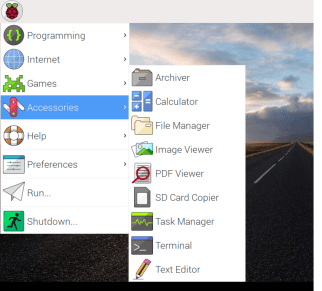
A: From RPI, click RPI icon (top left), click Accessories, click Terminal
Q: What are some basic Linux commands?
A: there are many sites that provides intro and comprehensive lists so I’m not going to replicate that info here. For details, please refer to the following:
https://www.raspberrypi.org/documentation/linux/usage/commands.md
https://pimylifeup.com/linux-commands-cheat-sheet/
tip: to see a list of options for any command, enter the command followed by –help
Troubleshooting
Some of the top commands/must-know commands include the following
System
- df -h Shows information about available disk space
- reboot reboots immediately
- poweroff shutsdown RPI immediately
Networking
- ping Example ping 123.1.12.1 (put in your IP address) tests connectivity
- if ping is successful you should be able to long into using ssh -l pi IP address
File
- mkdir creates new directory
- ls -l lists files in a the current directory
- cd /abc/123 changes the current directory to /abc/123
- System logs are stored in the folder /var/log directory
- to copy all files in a directory from RPI to your Windows device:
- from Windows, press the Window key and type “command” to get a command prompt
- Now type the following
scp -r pi@192.168.1.17:/home/pi/xxx/zzz/* C:\xxx\yyy\zzz\
- First directory is the complete path of your file name on your RPI
- Second directory is the complete path of your file name on your WINDOWS device
 wild sprout
You must be logged in to post a comment.